

Windows’ built-in “Run-As” command allows you to launch a program as a different user account than the one currently active, However, runas.exe cannot be fully automated as it requires that the user typein the password for the alternate account. RunAsTool is portable freeware which allows standard users to run a specific program with administrator privileges without the need to enter the administrator password. This allows you to provide standard (non-admin) users with access to programs that require admin rights.
Some programs may not run correctly under a restricted account due to missing administrator rights. Therefore, many users are given administrator accounts, which makes the system more vulnerable to malware, viruses and other security risks. With RunAsTool, you can fix this. The login information for the application like username and password are read from an encrypted file.
RunAsTool v1.7 – What’s New – (Wednesday, September 16, 2026)
1. [ADDED] – Wildcard support has been added to the module list.
2. [ADDED] – Code Improvements.
How to use
With RunAsTool there is no need to use a CMD prompt or any parameter in order to allow a standard user to run a program with admin rights. Just download, extract, and launch RunAsTool. Note: Problems may occur if RunAsTool is moved to the desktop and run from there. Both the administrator and users who will use the program must have access to the relevant folder. Therefore, running the program from a location to which you have access permissions will help prevent certain issues.
1) Administrators In standard user account:
Launch RunAsTool and choose an admin account (if there are more than one) and type in the associated admin password.
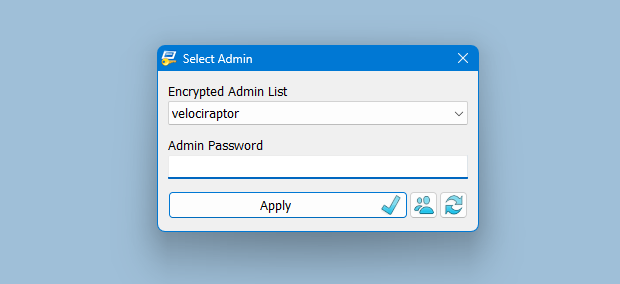
RunAsTool has two user interfaces (UI). One for administrator accounts and one for standard users. (Standard users aren’t able to use the admin UI). In the admin UI, you can easily drag and drop any program(s) into the UI in order to give it admin privileges. Standard users can also create application shortcuts.
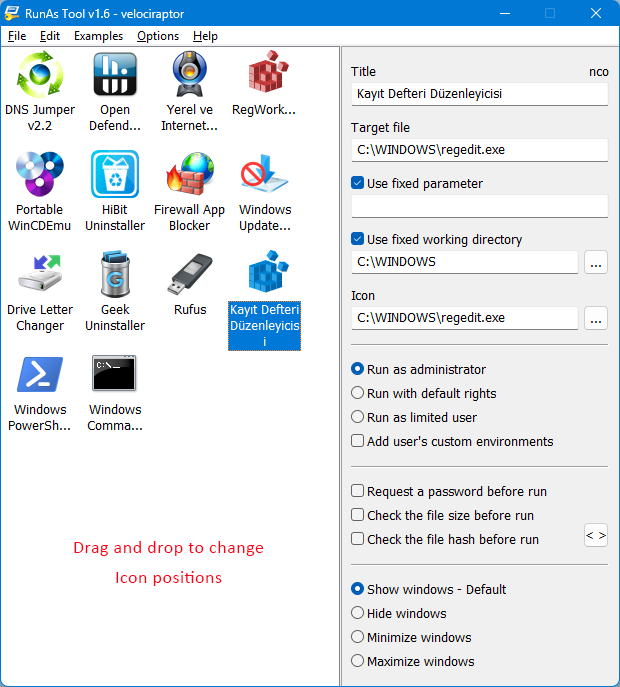
To change the places of the icons in the interface, simply drag them on each other. RunAsTool has several useful options. For example, “Run with default rights”, “Run as limited user”, as well as the ability to show, hide, minimize, or maximize the launched window(s). As a security check, administrators can use “check the file size before run” feature. If a restricted user attempts to rename another program in order to run it with admin rights (a.k.a. “spoofing”), this option will prevent the user from doing so.
2) Administrators In Administrator user account:
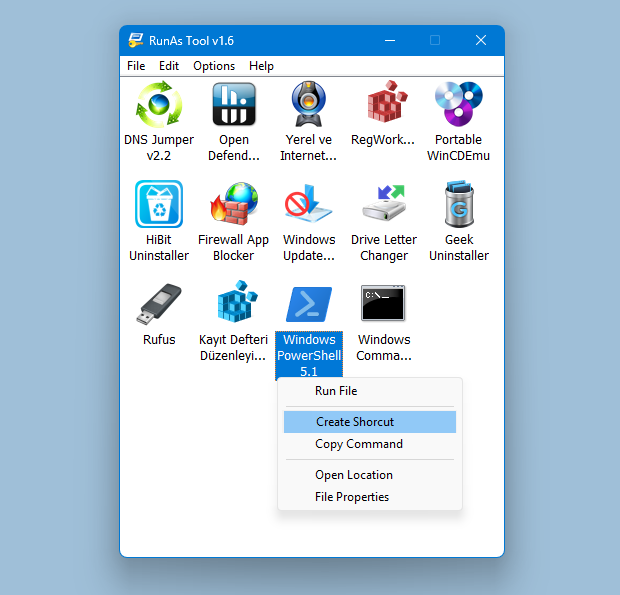
Admins can easily add program(s), then right click it/them and create a shortcut on the standard user’s desktop.
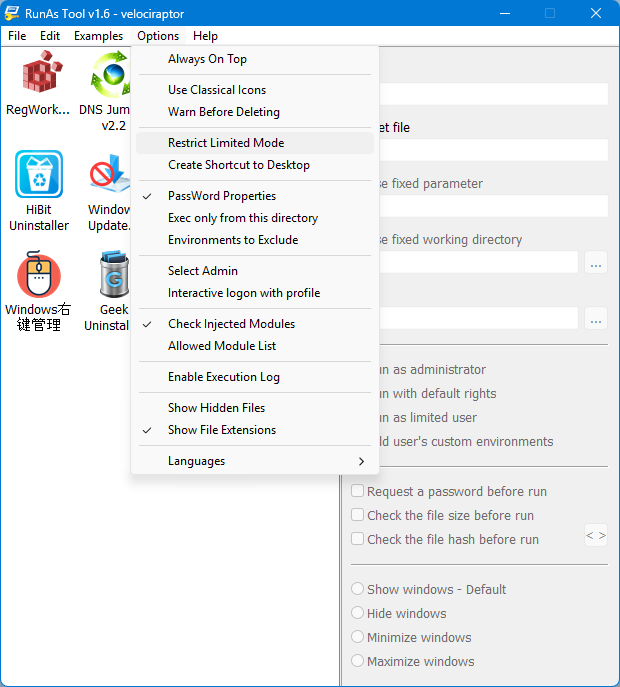
The Options menu contains many useful features, such as restricting Limited Mode, creating application shortcuts on the desktop, and adding a DLL file to the Allowed Module list.
Administrators can also easily import and export program lists. Just click File–>Menu and choose Import or Export. This is useful to create a list once and use it again later.
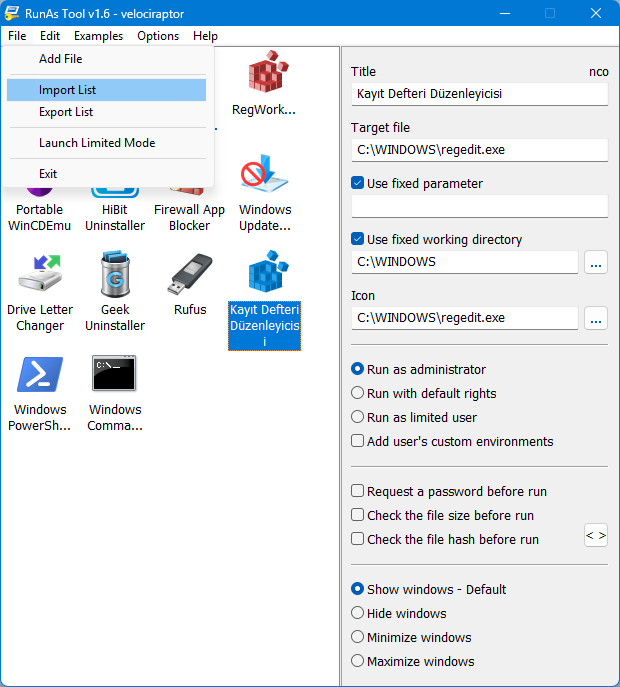
Standard users have two options to use an allowed program(s) with admin privileges.
1) In the RunAsTool restricted UI, double-click any program to run it with admin rights.
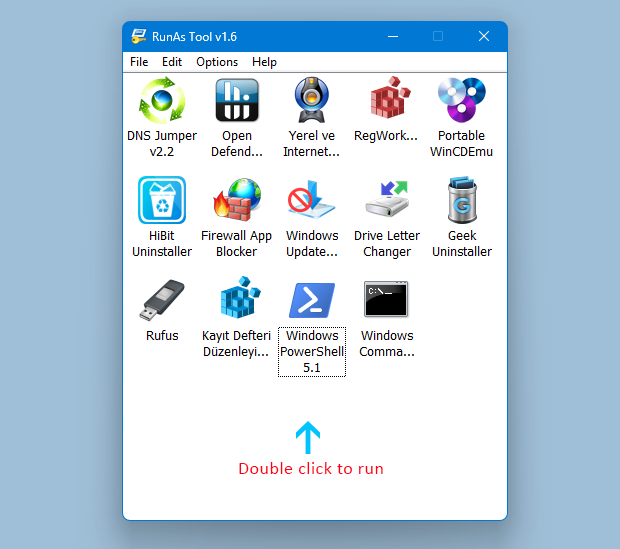
2) If the administrator has allowed it, a standard user may click any program and create their own shortcuts, so that there is no need to launch RunAsTool every time. They can also use any shortcut which the admin has already created for them. RunAsTool also supports domains. You can configure your settings in your Active Directory system and access the tool via a shared folder on other Windows systems connected to the same domain.
Supported operating systems: Windows 11 , Windows 10 , Windows 8.1 ,Windows 8 , Windows 7 , Windows Vista
Supported languages: English, Turkish, German, French, Polish, Korean, Russian, Spanish, Vietnamese, Greek, Japanese, Indonesian Bahasa, Persian, Arabic, Chinese Simplified, Chinese Traditional, Hungarian, Slovenian, Czech, Hebrew, Italian, Portuguese (BR), Dutch, Romanian, Portuguese, Catalan, Lithuanian

File: RunAsTool_x64.exe │ Virustotal
MD5: 30669dca4b74c54aaa14b17c3147744d
SHA1: 58bc9909d3e90fb2a0fe03a0c8ea37144d17d983
File: RunAsTool.exe │ Virustotal
MD5: 956b422c3332ee1b8622b0d3c528ab16
SHA1: 7aa88ed30d51ab7da7a57d23518d6f146749b67f




 Show My IP Address
 Google Translate
Hi, RunAsTool v1.7 supports password-protected administrator accounts on domain or local systems.
It supports domain-level password-protected admin users, which can be viewed using the
"net user /domain" command.
You’re welcome
Our company has a LAPS policy in place, and the administrator password is not static,
but we have set up a fixed domain account to be added to the Administrators group on client machines. Currently, version 1.7 can only recognize the domain administrator account. Is it possible to manually configure the domain account for login?
(我们公司有上LAPS策略,管理员密码不在固定,
但是设置了 一个固定的域账号加入到客户机的管理员群组中,现在使用1.7的版本无法只能识别到域管理员账户,请问能否手动设置域账户登录呢 )
We need to run the program on the client system with administrator privileges. To do this, we usually have to share the administrator password. This program has been a huge help. Now we no longer need to share the password. Thank you for this useful program.