

Windows’ built-in “Run-As” command allows you to launch a program as a different user account than the one currently active, However, runas.exe cannot be fully automated as it requires that the user typein the password for the alternate account. RunAsTool is portable freeware which allows standard users to run a specific program with administrator privileges without the need to enter the administrator password. This allows you to provide standard (non-admin) users with access to programs that require admin rights.
Some programs may not run correctly under a restricted account due to missing administrator rights. Therefore, many users are given administrator accounts, which makes the system more vulnerable to malware, viruses and other security risks. With RunAsTool, you can fix this. The login information for the application like username and password are read from an encrypted file.
RunAsTool v1.7 – What’s New – (Wednesday, September 16, 2026)
1. [ADDED] – Wildcard support has been added to the module list.
2. [ADDED] – Code Improvements.
How to use
With RunAsTool there is no need to use a CMD prompt or any parameter in order to allow a standard user to run a program with admin rights. Just download, extract, and launch RunAsTool. Note: Problems may occur if RunAsTool is moved to the desktop and run from there. Both the administrator and users who will use the program must have access to the relevant folder. Therefore, running the program from a location to which you have access permissions will help prevent certain issues.
1) Administrators In standard user account:
Launch RunAsTool and choose an admin account (if there are more than one) and type in the associated admin password.
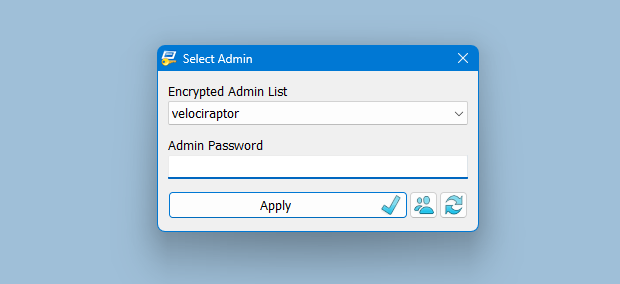
RunAsTool has two user interfaces (UI). One for administrator accounts and one for standard users. (Standard users aren’t able to use the admin UI). In the admin UI, you can easily drag and drop any program(s) into the UI in order to give it admin privileges. Standard users can also create application shortcuts.
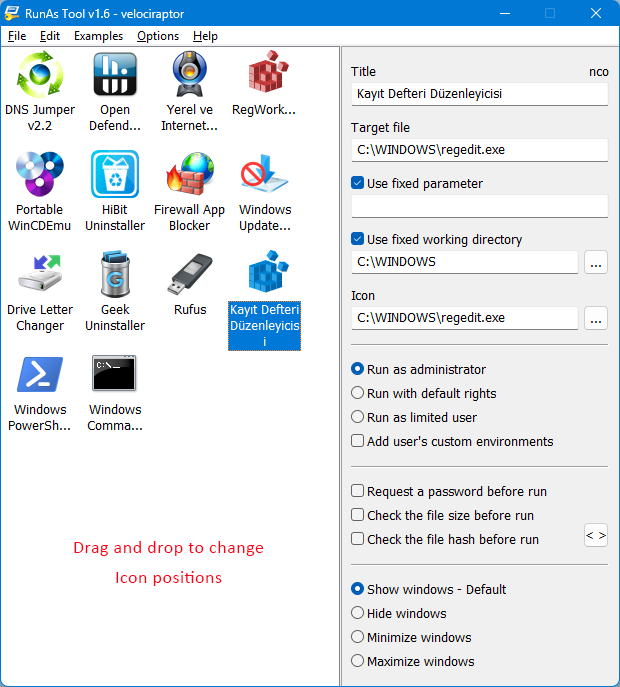
To change the places of the icons in the interface, simply drag them on each other. RunAsTool has several useful options. For example, “Run with default rights”, “Run as limited user”, as well as the ability to show, hide, minimize, or maximize the launched window(s). As a security check, administrators can use “check the file size before run” feature. If a restricted user attempts to rename another program in order to run it with admin rights (a.k.a. “spoofing”), this option will prevent the user from doing so.
2) Administrators In Administrator user account:
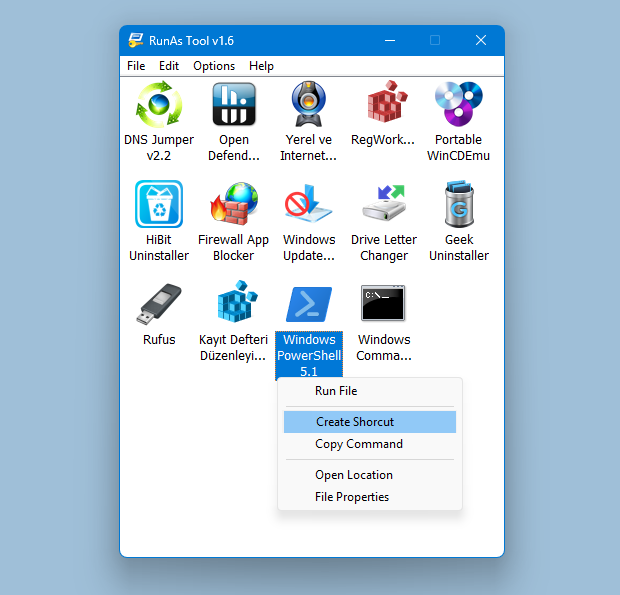
Admins can easily add program(s), then right click it/them and create a shortcut on the standard user’s desktop.
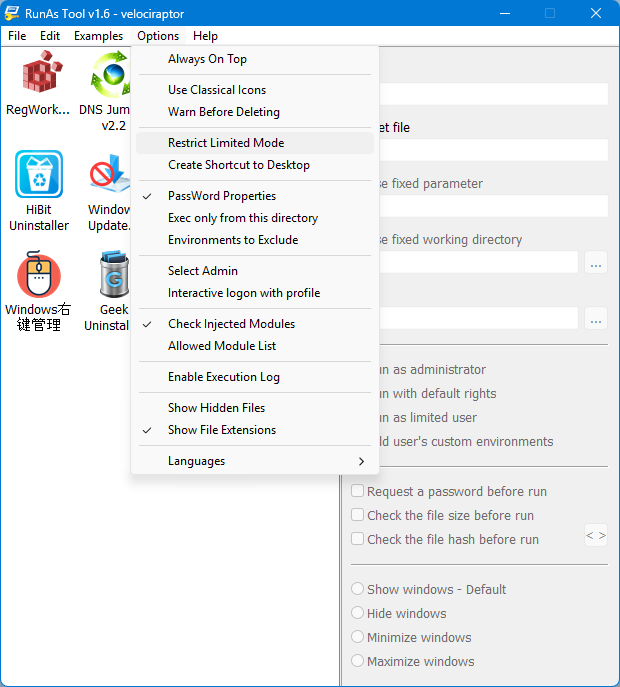
The Options menu contains many useful features, such as restricting Limited Mode, creating application shortcuts on the desktop, and adding a DLL file to the Allowed Module list.
Administrators can also easily import and export program lists. Just click File–>Menu and choose Import or Export. This is useful to create a list once and use it again later.
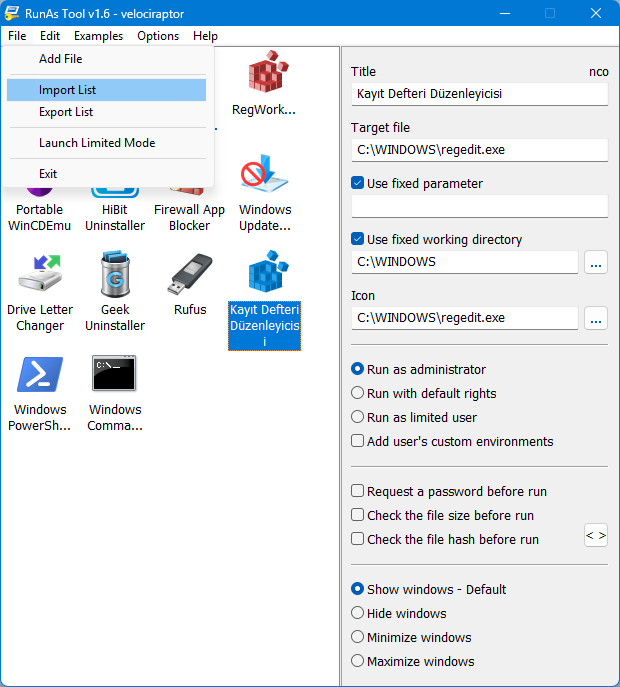
Standard users have two options to use an allowed program(s) with admin privileges.
1) In the RunAsTool restricted UI, double-click any program to run it with admin rights.
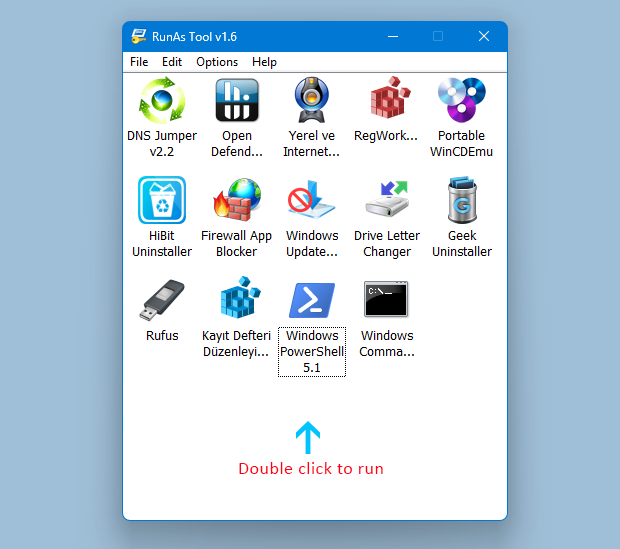
2) If the administrator has allowed it, a standard user may click any program and create their own shortcuts, so that there is no need to launch RunAsTool every time. They can also use any shortcut which the admin has already created for them. RunAsTool also supports domains. You can configure your settings in your Active Directory system and access the tool via a shared folder on other Windows systems connected to the same domain.
Supported operating systems: Windows 11 , Windows 10 , Windows 8.1 ,Windows 8 , Windows 7 , Windows Vista
Supported languages: English, Turkish, German, French, Polish, Korean, Russian, Spanish, Vietnamese, Greek, Japanese, Indonesian Bahasa, Persian, Arabic, Chinese Simplified, Chinese Traditional, Hungarian, Slovenian, Czech, Hebrew, Italian, Portuguese (BR), Dutch, Romanian, Portuguese, Catalan, Lithuanian

File: RunAsTool_x64.exe │ Virustotal
MD5: 30669dca4b74c54aaa14b17c3147744d
SHA1: 58bc9909d3e90fb2a0fe03a0c8ea37144d17d983
File: RunAsTool.exe │ Virustotal
MD5: 956b422c3332ee1b8622b0d3c528ab16
SHA1: 7aa88ed30d51ab7da7a57d23518d6f146749b67f




 Show My IP Address
 Google Translate
You can turn off the UAC warning. Other than that, it doesn’t seem possible for a restricted user.
Is it possible to run the software without UAC screen?
RunAsTool v1.6 runs as a portable application. For password security reasons, we have removed the option to modify the list via the command line (Import). To create a shortcut via the command line, you need to know the 3-digit ID of the relevant command in the program’s list.
RunAsTool_x64.exe /ID abc
If you know the “abc” ID from the example, you can create a shortcut using PowerShell or cmd. You can ask an AI for examples of how to create shortcuts using cmd or PowerShell.
Hi! Is it possible to somehow add/remove programs via CLI, or CMD/Powershell and then generate a shortcut to a specific folder? Thanks for the great work.
Hi, Yes, you can use it in a business environment. It is allowed.
Hello,
Can I use the Runastool in a business environment? (company)
Is it allowed to use?
Thanks for the feedback! We wanted users to discover some of the features on their own. 🙂
I monitored RunAsTool v1.6 using programs such as WinAPIOverride, API Monitor, and others, but I was unable to obtain the password.
Password security is much better in this version. Many of the program’s features aren’t covered in the post above!
Thanks for the update.
You’re welcome
Many thanks Sordum, RunAsTool has proven itself invaluable to us. We have almost 4000 Windows computers used by Students, Teaching Staff and Support Staff. Only IT people like myself have Administrator access on anything. As courses change we have to change software to match, and in recent years have encountered more and more software that will only run correctly for users with Administrator rights. Meanwhile we operate under ever stricter mandatory security protocols, so our users cannot have those rights. Windows "runas" won’t cut it. RunAsTool solved the problems instantly. Thanks again 🙂
@Marco, regarding your hypothesis – is it possible to log into Windows with a local NON-administrator account and without a password?!
And if I want to test the current version or the previous version – how will it be done?! Microsoft allows logging into Windows only with a username, but without a password, and this software requires more than Microsoft.
@Tuk-tam
Sometimes, on a restricted user account, you may need to run a program with administrator privileges. To do this, we usually use the RunAs method. If you already have administrator privileges, you don’t need to use the program.
What the sordum.org team refuses to understand is this: Is it a fact that Windows 10/Windows 11 can be installed and run only with a username, but without a password?! The answer is positive: Yes.
An entire operating system allows this. But one program limits more than an entire operating system. It makes no sense. This is the first case in history in which Microsoft is more prudent than anyone imagined.
Why am I writing all this?! If Microsoft required a password – then I would agree with the requirement of "RunAsTool v.1.6", but in this case the sordum.org team has turned its back on justice.
I hope my opinion is approved and published, because I express a different point of view.
You’re welcome and Thanks for your feedback.
I configured the program in the domain (Active Directory) and shared it on the network. It works flawlessly on the systems in the domain. Thank you.
Yes, RunAsTool is compatible with encrypted local and Active Directory administrative accounts.
@tuk-tam has a point
If there are only microsoft-accounts / entraid-accounts with adminrights. You can’t select them to enter the password.
So you would have to create a new, local Adminaccount, just for runas to recognise it.
Stumbled upon theses on my private rig, where there are no local accounts. For my work rig,