

MSDN: Removes as many pages as possible from the working set of the specified process.When too many programs are using up your computer’s RAM (Random Access Memory), you may find your system becoming slow or unresponsive. to clear out the clutter from your system’s memory and get it running smoothly again use “Reduce Memory” , it will free up your RAM memory a little in Windows.

If you use it under the Normal/restricted user or with /O parameter , it will free up Memory for current user and only for Applications but if you use it with Administrator privileges it can optimize memory usage for services and Background working programs.
What is new : (Friday, November 20, 2026)
1.[FIXED] – The program crashes if the total number of operations exceeds 512.
2.[FIXED] – The threshold for automatic memory optimization is High. (reduced from 25% to 20%).
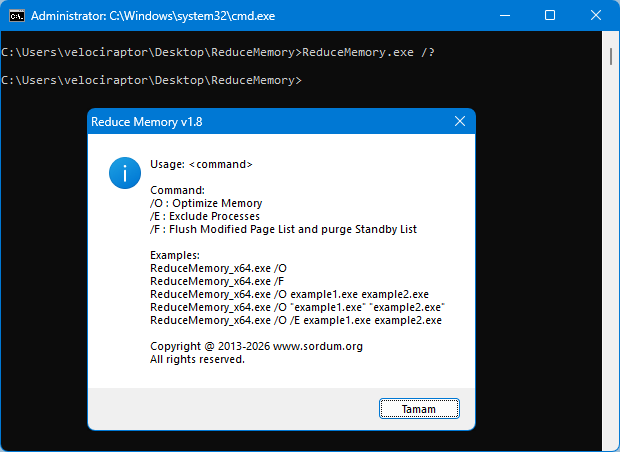
3.[ADDED] – The /F parameter is added to flush the Modified Page List and purge the Standby List.
5.[ADDED] – Code Improvements.
How to use it :
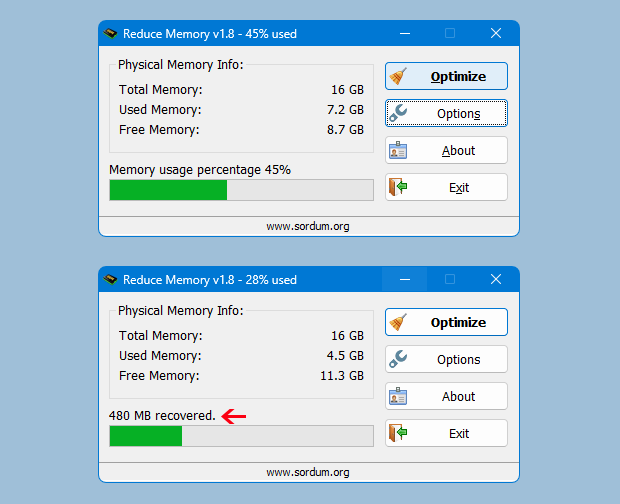
Extract the ZIP to any folder and then run the program. Click the “Clear memory” button to clear Memory Cache , You can see how much memory has been freed up for a short time.
Under Options button you can find some other options for example ; Automatically start at window startup, Hide window at startup,Minimize to the sytem try,Always show Program window on top , Set the Amount of memory usage exceeds … If you choose Optimize memory every x Seconds , Reduce memory will optimize RAM usage automatically. You can write between 3 – 99999 seconds in the box. If a number which less than 3 is written, the box will recognize it as 3 . If you tick the Set the Amount of memory usage exceeds , when the System Memory usage reaches the threshold which specified by the slider, Ram usage will be Automatically optimized at intervals specified in the seconds box. To use your own taskbar icons ; please Choose 4th icon packs in options menu then save the settings , an icon folder will crate in the Reduce Memory root folder then you can change the icons and use your own.
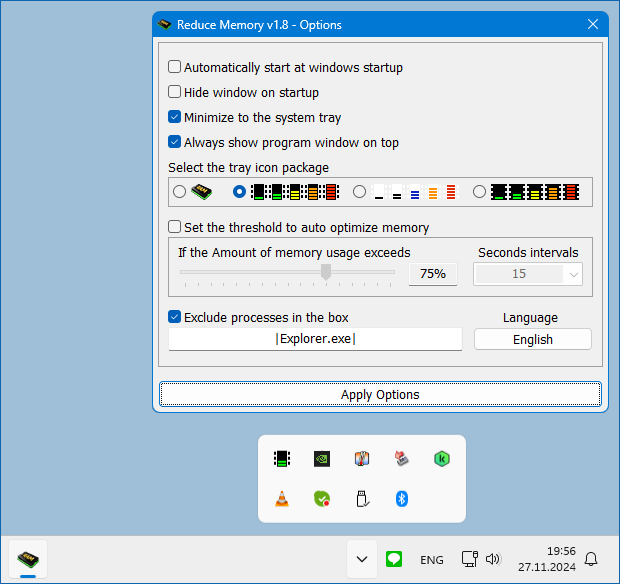
You can add some Processes which you want to exclude from Ram Optimization, into the “Exclude processes in the box” box. If the “Exclude processes in the box” section is unchecked, EmptyWorkingSet is applied to the processes written in the box. Reduce Memory has Cmd Parameter support.
With your suggestions We can add it extra features and develop it further.
Supported operating systems: Windows 11 , Windows 10 , Windows 8.1 , Windows 8 , Windows 7 , Windows Vista , Windows Xp – (x86 & x64)
Supported languages: English, Turkish, German, French , Korean, Russian, Spanish, Italian, Portuguese (BR), Portuguese (Português), Persian, Romanian, Polish, Chinese (simplified), Chinese (Traditional), Vietnamese, Dutch (Nederlands), Japanese, Arabic, Georgian, Greek, Azerbaijani, lithuanian, Hebrew, Ukrainian, Czech, Spanish (Castellano), Norwegian, Croatian, Slovenian, Finnish

File: ReduceMemory_x64.exe │ Virustotal
MD5 : 9f3e2ac9e844ef705ced653e4a4dac2e
SHA1 : 55752707d7d6527a5217d4dfe3ba53a9773c9a24
SHA-256 : 97155453d474045a41a0e113ec23c5e7491be0947f743c253fb0d9a208f65b36
File: ReduceMemory.exe │ Virustotal
MD5 : 13340f3dbb676e3b8364d6987581d575
SHA1 : 41b9d04123301c591d1e2e90ac06189626964a6b
SHA-256 : 21003937da49d75ace11d2b76d5f0caed4940c6a02a78288528a1adb9c05191b




 Show My IP Address
 Google Translate
Hola, he estado intentar descargar la herramienta, pero no le hayo, si pudieran indicarme la ubicación sería grato. Gracias
Fixed , thanks
Hello .. I just discovered this application and I think it is very good. I would like to report a small error in the Spanish part of the ini file. Line 26 should say:
26="Si la cantidad de uso de memoria excede"
Vietnamese language has been added , thank you
I send language Vietnamese, pls check!
Chinese language support has been added , thank you
I translated the interface into Chinese
On winXP 32-bit does not start with Windows startup.
On win10 64-bit does not allow saving custom options to ReduceMemory.ini file.
请问可以添加简体中文吗?
Thank you Persian language has been added
Hello. You can download the Persian translation file of the program Reduce Memory
thank you
@Daniel Robinson
I think you are having trouble due to NTFS access permissions.
If the program is running, right click the icon in the tray and close the program with "Exit". Then run the program after copying it to the desktop and try again.
Could you please test it on different Pc ?
No, even running as administrator, same problem recurs "can’t write to file"
@Daniel Robinson
You may not have write permissions to the ReduceMemory.ini file. Try again by closing the program and running it as administrator.
@ Daniel : What is your Operating System ? did you first Unzipped it ?
@ Andy : Thanks
When trying to apply options I get a "can’t write to file" Can anybody help with this? Thanks…