

The Desktop.ini file is a hidden Windows operating system configuration settings file located in custom folders and used to store information about the layout of a Windows folder. Essentially, if the layout or settings for a folder are changed, a desktop.ini file is automatically generated to save those changes. When you create a new folder in Windows it is created with the standard folder icon, one common use of the desktop.ini file is to use to it set a custom icon for a folder, however this is not the only thing that it is used for. The desktop.ini file can contain alot of attributes but the following custom attributes are the most common:
ConfirmFileOp : Set this entry to 0 to avoid a “You Are Deleting a System Folder” warning when deleting or moving the folder.
IconFile : If you want to specify a custom icon for the folder, set this entry to the icon’s file name. The .ico file extension is preferred, but it is also possible to specify .bmp files, or .exe and .dll files that contain icons.
IconIndex : Set this entry to specify the index for a custom icon. If the file assigned to IconFile only contains a single icon, set IconIndex to 0.
InfoTip : Set this entry to an informational text string. It is displayed as an infotip when the cursor hovers over the folder. If the user clicks the folder, the information text is displayed in the folder’s information block, below the standard information.
Click for more Desktop.ini Commands
What is New (Wednesday, April 8, 2026)
[Added] – A 64-bit application.
[Fixed] – The issue with the mouse cursor flickering.
[Added] – An option to recognize the desktop.ini file in subfolders by the system.
[Added] – Improvements were made in coding.
How to use Desktop.ini Editor
Desktop.ini editör is a portable freeware to simplify the Desktop.ini operations , it can help you to edit desktop.ini files and set custom folder icons , Folder Info Tips , adding CLSID , reset folder settings to default usw. If Windows determine to ignore any changes to desktop.ini file use “Desktop.ini Editor”
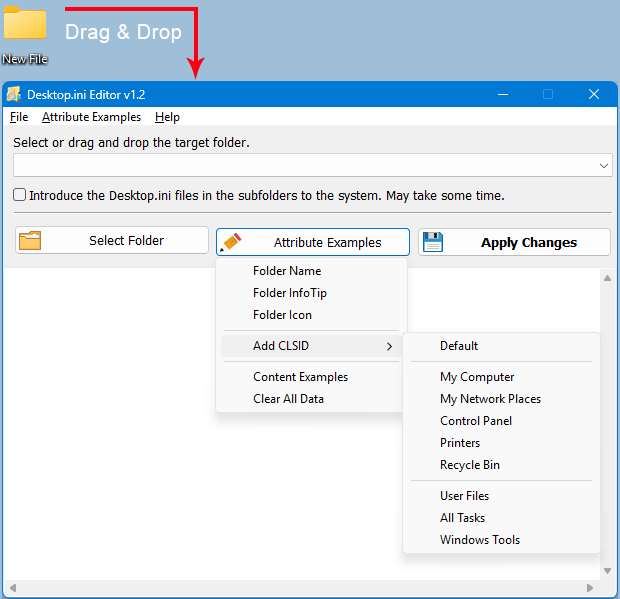
It has a minimalist GUI. Drag & Drop any folder to edit Desktop.ini file you can also use the “Select Folder” button . Under “Attribute Examples” Button you will find many features you can also edit desktop.ini file manually.
A folder with many subfolders may cause the system to fail to recognize the settings in the desktop.ini file after copying or restoring a backup. In such a situation, configuring the desktop.ini file in each folder is very difficult, tedious, and time-consuming
Once the “Introduce the Desktop.ini files in the subfolders to the system.” checkbox is selected, this configuration process will now be much easier and the desktop.ini files located in subfolders will be saved to the system.
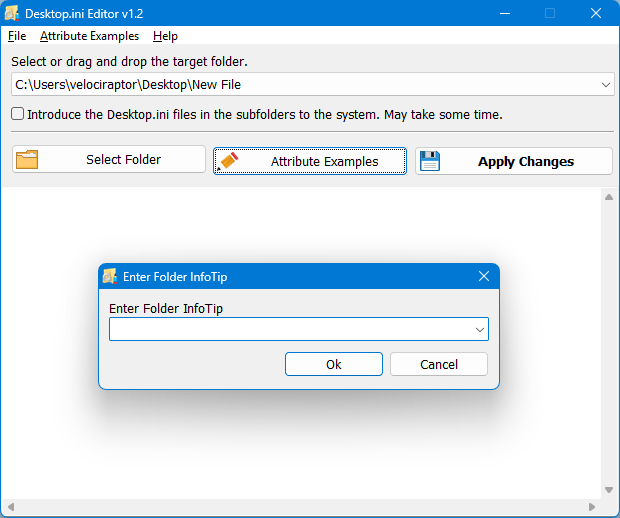
To Apply your custom settings use the “Apply Changes” button after that if you not see any changes please use the “Rebuild Shell Icon cache” Option under the File menu
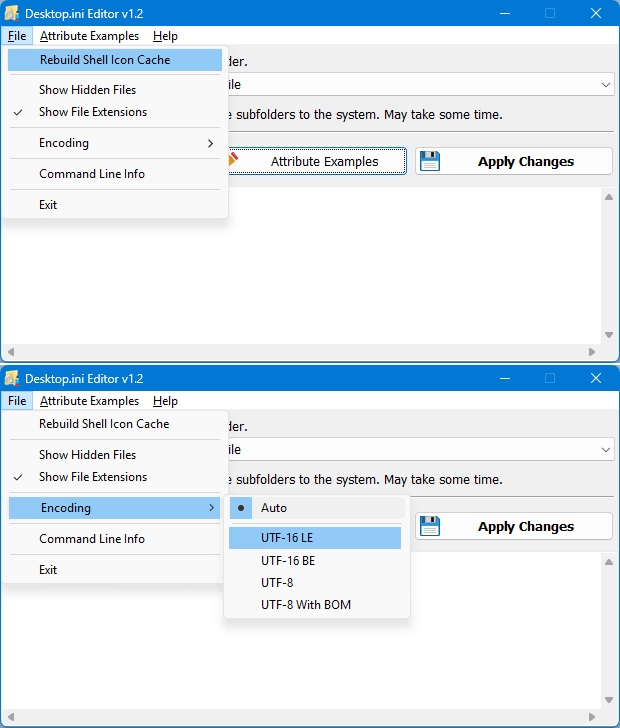
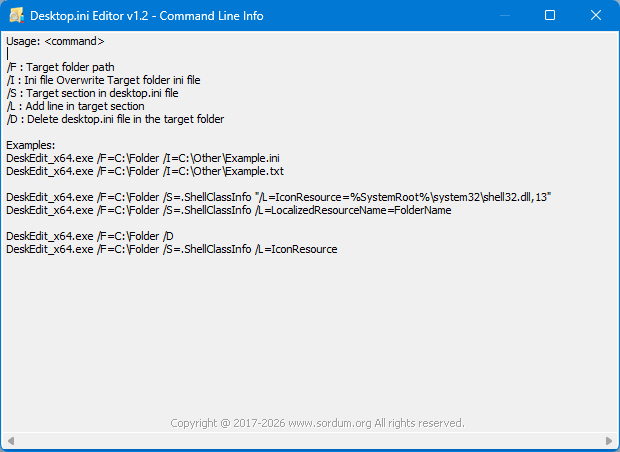
Desktop.ini Editor also offers CMD support.
NOTE: If the process fails, try running the program as administrator.
Supported operating systems: Windows 11 , Windows 10 , Windows 8.1 , Windows 8 , Windows 7 , Windows Vista , Windows Xp – (x86 & x64)

File: DeskEdit_x64.exe │ Virustotal
MD5 : 69cf88bafb13294d4d488eda32e8a573
SHA1 : 37163ee9665c75567b685e9d69e5313a57a57f5c
SHA-256 : 40c1292e89f6f4d36428a0557ac0932fa705c71fec348cfdd517bd41538f5427
File: DeskEdit.exe │ Virustotal
MD5 : 8d5dafc21e631020b627851a5cce70a2
SHA1 : aeb4e7b9c6f1ec3058ef75467e0635eaa62fa619
SHA-256 : 0a88ae821f808bda1775542e717e051bec99580153e7c2b8c05475a259685607




 Show My IP Address
 Google Translate
buttons for TS
TOTALCMD#BAR#DATA
%COMMANDER_PATH%\Utilites\DeskEdit\DeskEdit.exe
/F="%P" /S=.ShellClassInfo "/L=IconResource="%N",0"
%COMMANDER_PATH%\Utilites\DeskEdit\DeskEdit.exe
Set folder icon from selected file
%COMMANDER_PATH%\Utilites\DeskEdit\
-1
TOTALCMD#BAR#DATA
%COMMANDER_PATH%\Utilites\DeskEdit\DeskEdit.exe
/F="%P" /D
%COMMANDER_PATH%\Utilites\DeskEdit\DeskEdit.exe,2
Delete folder icon
%COMMANDER_PATH%\Utilites\DeskEdit\
-1
Hi, There may be a problem with the parameters you are assigning with %P and %S. As we are not using Total Commander, here is an example for a bat file.
@echo off
Set tFolder="D:\Folder"
Set tIniLine="IconResource=%SystemRoot%\System32\shell32.dll,43"
DeskEdit.exe /F=%tFolder% /S=.ShellClassInfo /L=%tIniLine%
It could be something like this.
Thank you for the good program.
I have one question. I’m trying to use "DeskEdit" after registering at toolbar of Total Commander, but it doesn’t work properly.
%COMMANDER_PATH%\..\..\Data\Utils\ETC\DeskEdit\DeskEdit.exe
/F=%P /S=.ShellClassInfo /L=.\%S
I want to apply it as a relative path as above, but the icon file path is not exactly written in the ini file.
May I know the solution?
Desktop.ini editor is ready to edit the Desktop.ini file and introduce it to the system. We can determine the icon of a folder from the Desktop.ini file.
Windows does not support animated folder icons from desktop.ini
***Please, is it possible to you to animate icons and symbols, on the desktop and as folders?***
Previously, you could use this file to make the background of a folder, maybe even make it an animated folder. Now this requires installing a special driver, and then you will be able to change the background of the folder, but only where the driver is installed.folders and only where the driver is installed
Please, is it possible to you to animate icons and symbols, on the desktop and as folders?
Time to enhance this antiquated crap of Microsoft.
I also want to get a Chinese support
I also want to get a Chinese support
2023-11-8 23:33:54
2023-11-8 23:34:03
Thank you. Your request has been noted.
Thank you for your suggestion to use robocopy.
Some improvement suggestions :-
1. A simple tic box to include the sub directories when applying the desktop.ini file would be a great addition to the application.
2. Problem – Some folders might be locked as system folders [attributes] and will need to be taken ownership of (manually) before the application can apply the desktop.ini to the folder. It also happens that when the destop,ini file is pasted in the said folder that it inherits the same locked as system attributes and will also not be applied until (manual) ownership is taken of the desktop.ini file. I then have to go back and manually restore the original ownership of the said folder, which is time consuming.
Solution one – the application can have a tic box to run the process with Admin privileges or as Trusted Installer and that should overcome most of those sticky situations.
Solution two – Alternatively the application must record the ownership of the said folder and save it in a temp folder next to the application. Then take ownership of the folder, paste the desktop.ini file and take ownership of the desktop.ini file. Apply the correct attributes so that the system will apply the associated icon to the folder and then restore the folder’s ownership which the desktop.ini file will inherit. The recorded data in the temp folder can then be deleted to prevent useless growth of the temp folder size.
I know that this a a mouth full to ask and will undoubtedly complicate the application’s code. In my humble opinion, these additions to the character of the application will make it a flagship and loved application. You guy’s are the geek experts that can make such an application work and I’m a willing tester that can help to test and further develop the application.
There may be some AV’s that will flag the application as a possible virus because of it’s ability to change system files. But to be frank I have many such tools and I just whitelist those tools in the AV. Also the ReadMe!!.txt file can explain that the application is not harmful and soon the AV’s will leave it alone.
Thank you once again for a very useful application!!
If you use robocopy instead of xcopy, the new desktop.ini settings will be detected by the system after copying. Desktop.ini Editor does not support subfolders. We have noted it down , Thanks
For my private use I’m editing various images inside the folders of a few different games. Many have the same images and so I can just copy them over. It becomes very confusing in which game’s folders I’m working.
So in order to see in which of the various game’s folders I’m working [editing some images], I made identifying folder icons.
I used xcopy "C:\*" "H:\*" /T /E and copied the folder structure without the contents to another Directory and then populated those folders with the appropriate desktop.ini files. This took an incredibly long time…
Then I copied all those folders back to the original directory but the icons still don’t show. I believe it has to to with the attributes of the folders. If I change the attributes to read only it still does not show the folder icon and the game crash because it cannot write to the read only folder.
Then I found this marvelous tool [Desktop ini editor] and thank you, what a great help this tool is 🙂 🙂
However it is a huge task to drop each folder on to the app and then to commit the various folder icons for each folder.
Is there a way to fix the folder attributes from the command prompt inside Desktop ini editor ?
It would be great if you could help with the code required to fix the attributes for the main directory and all of its sub directories recursively. That way all the custom desktop.ini files I placed inside each folder will instantly show the correct icon image.
Thank you once again for this wonderful tool and your help with applying the correct folder attributes to all the sub directories of the main directory.
We have noted it down , Thanks
Hello, I also want to get a Chinese support? For now, I can only write this:
—————————————————–
[.ShellClassInfo] LocalizedResourceName = Folder name InfoTip = Prompt-Comments IconResource = icon.ico,0 Flags=0 [{F29F85E0-4FF9-1068-AB91-08002B27B3D9}] Prop 2 = 31, Title Prop 5 = 31, flag Prop 3 = 31, subject Prop 4 = 31, author
–
—————————————————-
1. Unfortunately, if you can batch drag and drop multiple folders +…. How beautiful.
2. [ Batch ] [ For modification ]
—Translation tool, difficult to speak—
How does exactly work? I’m confused especially with the geek lingo like CLSID. Do you have a YouTube video?
What I’m looking for is to backup my desktop settings including icons et al where they are positioned and more after a clean Windows installation.
I’m used to Android where you can use a third party desktop launcher and it will save the desktop or main screen shortcuts to a backup file. It’s no mess, no fuss. Quite simple. It will even display the shortcuts to non-existing or deleted applications.
I know your reicon utility does something similar, but in order for it to work, you need to have ALL your shortcuts on your desktop. If not, will only organize your existing icons, not the ones from another location.
I’m also looking for a utility which can backup my Quick Access layout and the paths they are linked to.
Hello, I would like to get a Chinese support, or can you share the source code of the software, or the language file?
This is the file where the program keeps some of its settings. If this file does not exist, the program automatically creates it at startup.
Command line works but creates an extra file in the directory: DeskEdit.ini
Web Link …
my command
DeskEdit.exe /F=.\ /S=.ShellClassInfo /L=IconResource=.\folder.ico
Is it possible to omit the creation of this file? You have to delete it manually every time and it is very annoying
BTW
Using these commands, does not create this additional file
Examples:
DeskEdit.exe /F=C:\Folder /I=C:\Other\Example.ini
DeskEdit.exe /F=C:\Folder /I=C:\Other\Example.txt