

Windows’ built-in “Run-As” command allows you to launch a program as a different user account than the one currently active, However, runas.exe cannot be fully automated as it requires that the user typein the password for the alternate account. RunAsTool is portable freeware which allows standard users to run a specific program with administrator privileges without the need to enter the administrator password. This allows you to provide standard (non-admin) users with access to programs that require admin rights.
Some programs may not run correctly under a restricted account due to missing administrator rights. Therefore, many users are given administrator accounts, which makes the system more vulnerable to malware, viruses and other security risks. With RunAsTool, you can fix this. The login information for the application like username and password are read from an encrypted file.
RunAsTool v1.6 – What’s New – (Wednesday, July 1, 2026)
1. [ADDED] – Password security has been enhanced.
2. [ADDED] – Domain support.
3. [ADDED] – The method was modified to work in portable mode.
4. [ADDED] – verifying the hash before running.
5. [ADDED] – prompting for a password before running.
6. [ADDED] – Option to inherit variables.
7. [REMOVED] – Support for Import Cmd parameters.
8. [REMOVED] – Support for XP.
9. [ADDED] – A large portion of the program has been rewritten.
How to use
With RunAsTool there is no need to use a CMD prompt or any parameter in order to allow a standard user to run a program with admin rights. Just download, extract, and launch RunAsTool. Note: Problems may occur if RunAsTool is moved to the desktop and run from there. Both the administrator and users who will use the program must have access to the relevant folder. Therefore, running the program from a location to which you have access permissions will help prevent certain issues.
1) Administrators In standard user account:
Launch RunAsTool and choose an admin account (if there are more than one) and type in the associated admin password.
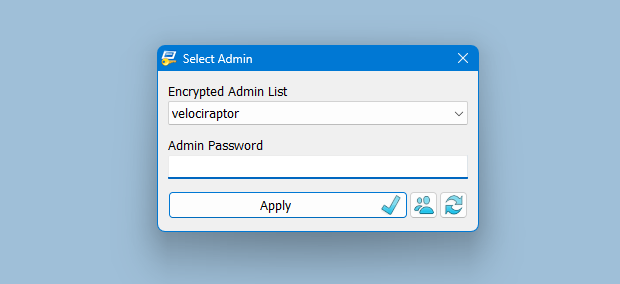
RunAsTool has two user interfaces (UI). One for administrator accounts and one for standard users. (Standard users aren’t able to use the admin UI). In the admin UI, you can easily drag and drop any program(s) into the UI in order to give it admin privileges. Standard users can also create application shortcuts.
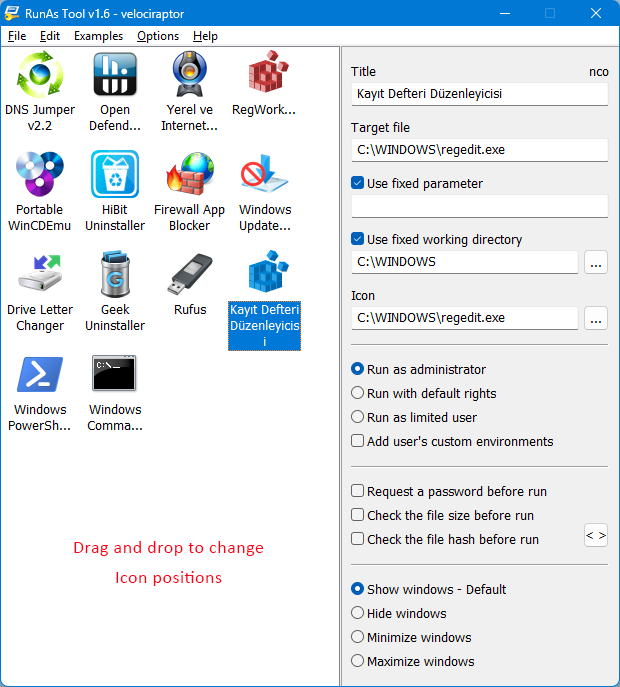
To change the places of the icons in the interface, simply drag them on each other. RunAsTool has several useful options. For example, “Run with default rights”, “Run as limited user”, as well as the ability to show, hide, minimize, or maximize the launched window(s). As a security check, administrators can use “check the file size before run” feature. If a restricted user attempts to rename another program in order to run it with admin rights (a.k.a. “spoofing”), this option will prevent the user from doing so.
2) Administrators In Administrator user account:
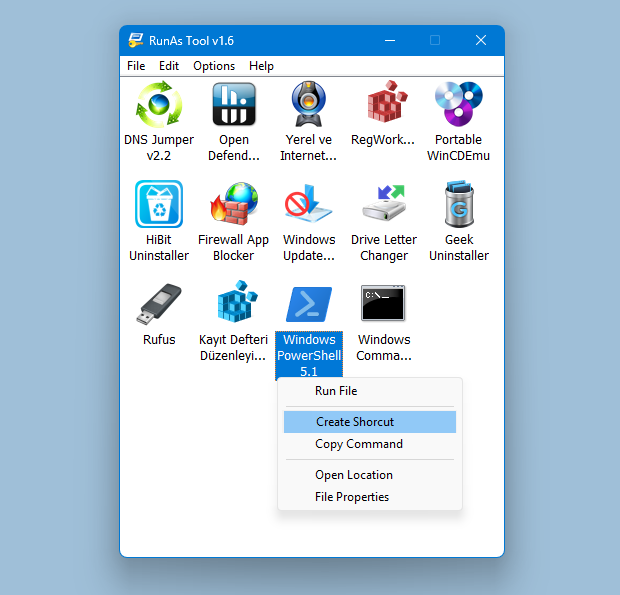
Admins can easily add program(s), then right click it/them and create a shortcut on the standard user’s desktop.
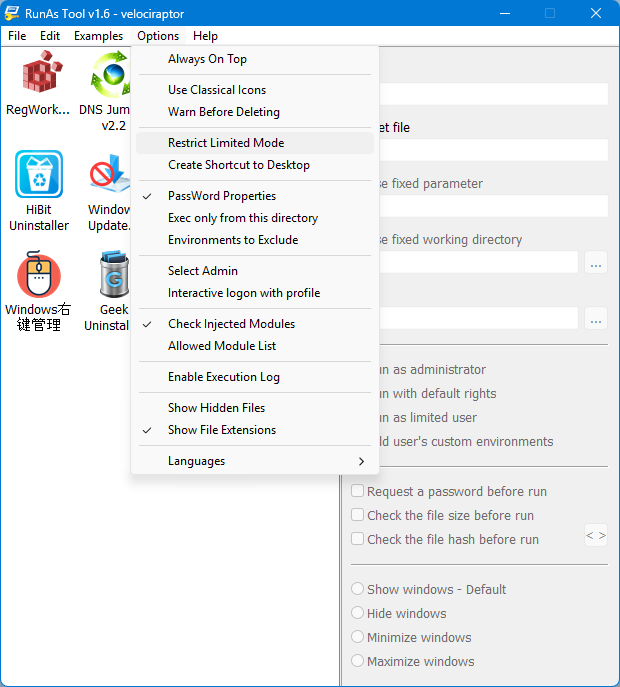
The Options menu contains many useful features, such as restricting Limited Mode, creating application shortcuts on the desktop, and adding a DLL file to the Allowed Module list.
Administrators can also easily import and export program lists. Just click File–>Menu and choose Import or Export. This is useful to create a list once and use it again later.
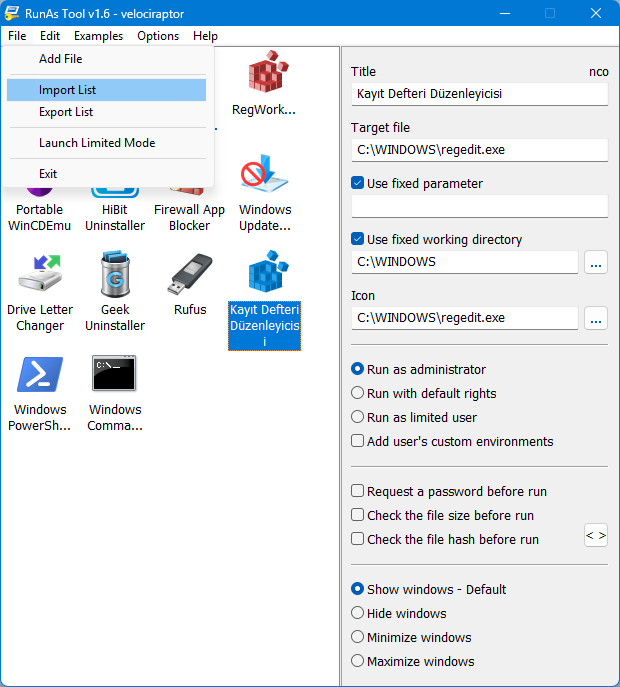
Standard users have two options to use an allowed program(s) with admin privileges.
1) In the RunAsTool restricted UI, double-click any program to run it with admin rights.
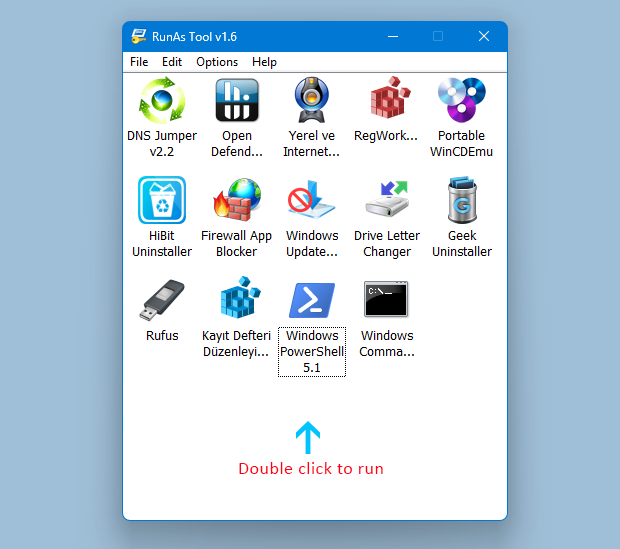
2) If the administrator has allowed it, a standard user may click any program and create their own shortcuts, so that there is no need to launch RunAsTool every time. They can also use any shortcut which the admin has already created for them. RunAsTool also supports domains. You can configure your settings in your Active Directory system and access the tool via a shared folder on other Windows systems connected to the same domain.
Supported operating systems: Windows 11 , Windows 10 , Windows 8.1 ,Windows 8 , Windows 7 , Windows Vista
Supported languages: English, Turkish, German, French, Polish, Korean, Russian, Spanish, Vietnamese, Greek, Japanese, Indonesian Bahasa, Persian, Arabic, Chinese Simplified, Chinese Traditional, Hungarian, Slovenian, Czech, Hebrew, Italian, Portuguese (BR), Dutch, Romanian, Portuguese, Catalan, Lithuanian

File: RunAsTool_x64.exe │ Virustotal
MD5: 32f05522749f93b52436d2947912a911
SHA1: 7930d2ee7eeec17ec79aa5c579979975c1fe50f4
File: RunAsTool.exe │ Virustotal
MD5: 25a1099d786dc05d15ad221816828354
SHA1: d22394a7f3c4842ee418943a551783dadcd1b32d




 Show My IP Address
 Google Translate
Hi, RunAsTool runs under a local admin account with a password. Try to create a local admin account with a password on your system.
Hi everyone,Unable to get this working – continuing to get the error “User password is wrong!”
Any known resolution or recommendations to try to resolve this?
Tip:When you use it to start an executable program with administrator privileges, if the program has the function of saving or opening the program, you can use this function to start the command prompt with administrator privileges.
Log in to the admin account you set in the RunAsTool program and check if the printer is working.
I use it,I can’t find my printer
>This allows you to provide standard (non-admin) users with access to programs that require admin rights. …
Uh.. eh… does this not allow EVERYONE with normally lower rights, for instance in an office, to bypass the rules that the company’s admin has set and to use programs, that are not allowed?!
> RunAsTool does not support extra parameters from
ommand prompt.
thank you.
We hope that it will be implemented in the next version update.
Hi , RunAsTool does not support extra parameters from command prompt.
> then go to the properties of the shortcut and get the parameter from the Target field.
Thank you for your reply.
I tried various things, but couldn’t make it happen. Is it correct to specify the args in the same way as SkipUAC?
"C:\Program Files\RunAsTool\RunAsTool.exe" /ID wmp "D:\test.jpg"
My purpose is to pass args to an app that I want to start with user privileges. (args cannot be predefined as they differ each time)
RunAsTool requires an encrypted local administrator account to run
I can’t apply my Admin Password. Whenever I apply, a pop-up message shows saying "User password is wrong!". I’m logged in to my computer with a Microsoft account, which uses a PIN to sign in. Is the app doesn’t work with PCs logged in with their Microsoft account?
You can right click on any item in the list and create a shortcut to the desktop, then go to the properties of the shortcut and get the parameter from the Target field. Your request was already in our notes.
Thank you for providing such great software!
I use SkipUAC a lot.
We hope that support for arg parameters like SkipUAC will be implemented.
We need domain admin support!!
Hi , On the same system, the HKLM key is for all users. Therefore you cannot set multiple RunAsTools on different admin accounts.
Hi Ihave 4 users on my desktop, I want to allow admin privilege for steam to them separately using 4 different admin accounts.
Ex;- user 1 running steam with Admin privilage and logged in their account, same account is coming in User 2 also even after selecting another admin for that… Please help how to keep all steam access seperate
Hello, We tested the following command on our system.
PSTools\PsExec64.exe -s -i "E:\RunAsTool\RunAsTool_x64.exe" "/U=Admin" "/P=123" "/I=_Import.rnt"
The command worked fine. Unfortunately we have no idea what your problem is.