

PowerRun is a portable freeware to launch regedit.exe , Cmd.exe or other software with the same privileges as the TrustedInstaller / Nt Authority/system Why would you need it? Sometimes it is not enough to just be running as Administrator, Maybe it’s a file or a registry key that is locked or not editable, PowerRun a tool with this powerful privilege most likely solve that , PowerRun doesn’t require any installation process or additional dll files.
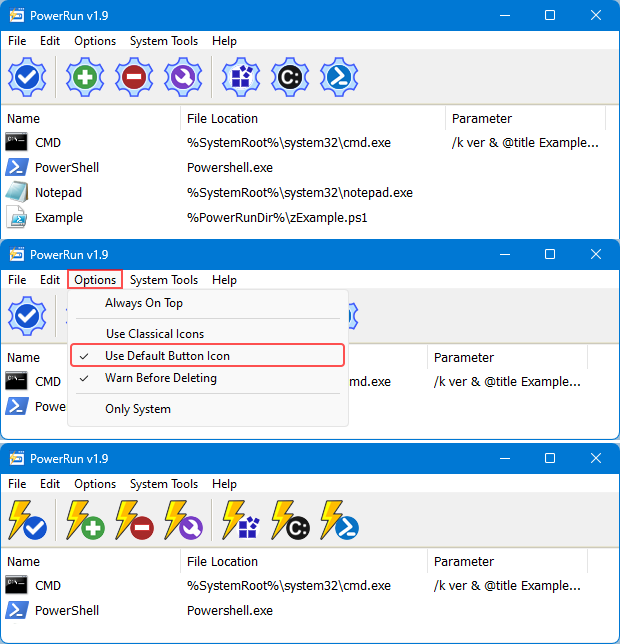
What is New (Wednesday, July 15, 2026)
2. [Added] – Code Improvements.
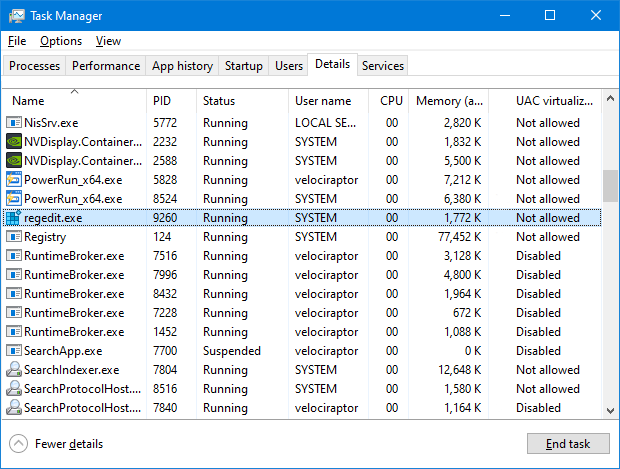
How to use : After downloading, extract PowerRun to your desired location, then run it. You can drag and drop any files on it for example ; program files , Program files shortcuts , script files , text files usw. to run a listed file in TrustedInstaller/SYSTEM privileges you can select it and use run button or right click on it and choose “Run File” feature , the file will run with Highest privileges , you can check the Task manager’s details tab to verify that the selected file running under SYSTEM Privileges.
If you’re trying to edit or delete keys from the registry , you might find that some keys won’t let you do anything with them and you’ll get an error such as “Cannot delete xxxxx: Error while deleting key“. These keys are usually protected to stop accidental deletion , You could also be the administrator on the computer, but still can’t manipulate the required key.
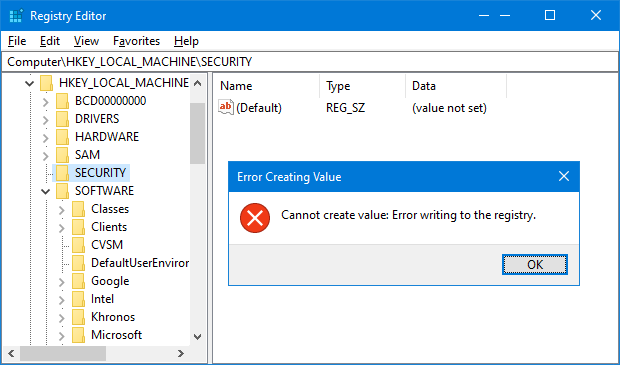
Even though the administrator account has a great deal of control, there are other hidden accounts and levels on the system which have even greater access and therefore standard administrator privileges are not enough. To solve this problem, you have to force the registry to allow the logged on user full control of the subkeys in such cases PoweRun can help you : use the “Launch Registry Editor” button.
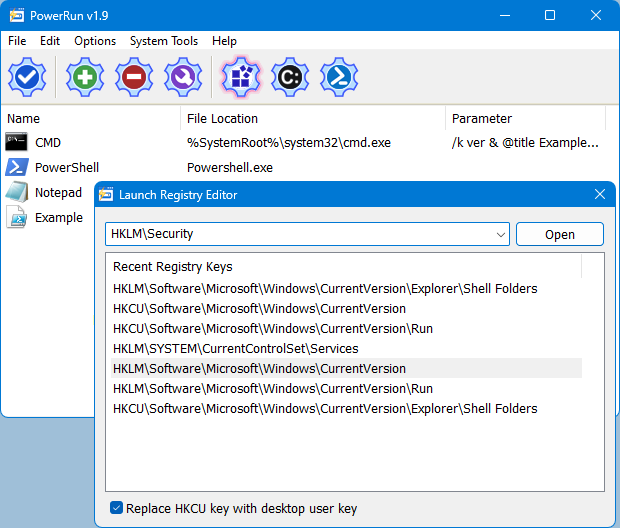
Copy desired registry key and click “Open” button , PowerRun will open regedit (with Highest Privileges) and jump to the key Automatically. If you want to add any parameter to listed script or program rigt click on it and use “Edit Item” or just use wrench Button.
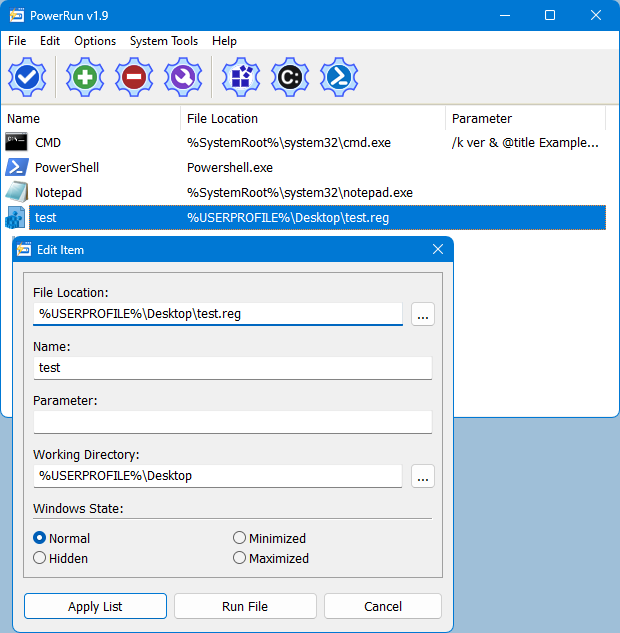
For automation purpose PowerRun allows you to create a vbs or bat file with necessary parameters in it , to use this feature :
1. Select the Program.
2. And use Edit – Create bat/Vbs File feature.
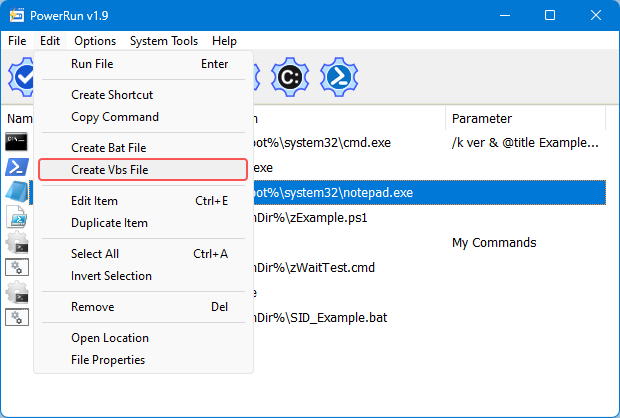
Don’t forget to run the script in the same folder with PowerRun.exe or PowerRun_x64.exe.
Choosing between System or TrustedInstaller Privileges
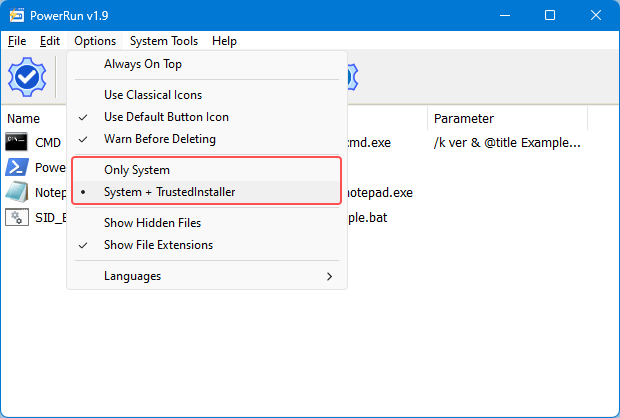
In the Options menu, you can choose between System and System + TrustedINstaller permissions.
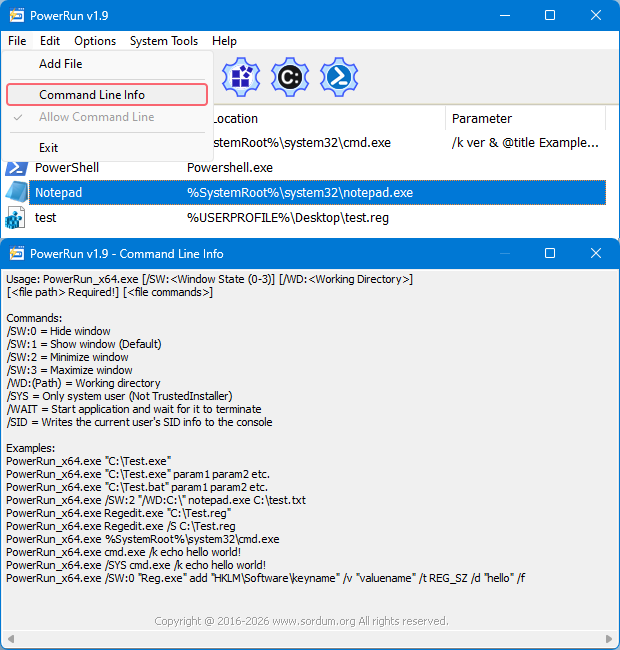
To see all supported command line parameters of PowerRun, use PowerRun.exe ? command or click File menu and select Command Line Info.
NOTE: PowerRun can not run only with “TrustedInstaller” privileges it can also run with “Nt Authority/system” privileges.
Supported operating systems: Windows 11 , Windows 10 , Windows 8.1 , Windows 8 and Windows 7
Supported languages: English , Turkish , German , Portuguese (Brazil) , Korean , French , Greek , Russian , Japanese , Polish , Spanish , Chinese (Simplified), Lithuanian, Italian, Vietnamese, Dutch (Nederlands)


File: PowerRun_x64.exe │ Virustotal
MD5: 8177df010460984de0df608483531103
SHA1: 4f4b009bdad5c97317492058267d51a4d3fde21a
SHA-256: b305126c2881073a53073bd1782d0649764d198562e02fc02395fc07637dcec5
File: PowerRun.exe │ Virustotal
MD5: 4dd8405238b8b3df3e8a663b98f064e0
SHA1: 24e0fa7565d006fa44ec7c243c416997e3b1a011
SHA-256: 4b2f1f74f33706ff4f1103495134670ff9fac88cb672bf2524d02f8405f14fb5




 Show My IP Address
 Google Translate
Try to call them over cmd which runs with highest privileges , in general ; associated or followup files takes the admin, system,trustedinstaller privileges over. (there is sone exceptions)
LOL followed by another.exe that has 619 failed to write reg entries…sigh
How do we include the associated or followup exe’s
Example, setup.exe calls followup.exe and it doesn’t get elevated privileges. I get 201 registries that won’t allow access. A lot of work to change permissions manually.
Fixed , thanks again
I’ve downloaded the zip with my translation in the .ini and there’s a problem with double quotes. It seems that the comments editor here replaced the normal quotation marks (Unicode 0x0022) I pasted with right double quotation marks (Unicode 0x201D), so the Spanish messages aren’t correctly displayed. It should be easy to fix with a text editor.
Thank you for your valuable feedback , Spanish language Added.
Thank you. I’m looking forward to the fix. By the way, I added my translation to the .ini.
[Language_Spanish_Español]
01=”cdlvcdlv”
02=”&Archivo\n &Editar\n &Opciones\n &Ayuda”
03=”Ubicación del archivo\n Parámetro\n Carpeta de inicio\n Estado de la ventana”
…
I found also a typo in the help message. The notepad command should be “/WD:C:\” not “/SW:C:\”.
We will fix it next version, thanks for your feedback
I want to change the value of some key that needs TI permissions without taking ownership etc. I try to run the a ‘reg.exe’ command but the problem is the data has a space, so the /d parameter must be double-quoted. The line is something like powerrun /SW:0 reg.exe add HK… /v NameOfValue /t REG_SZ /d “Data string with spaces”. I have found no way to pass these double quotes to powerrun.exe. I tried escaping with \ , with ^ , double quoting all the parameters and several combinations to no avail. Is there a way powerrun this command without creating an external .reg or .bat?
Thank you we will try to contact with them
Iobit Malwarefighter 5.3 meckert die x86 an
Can you give some technical details on how PowerRun moves from high integrity to SYSTEM?
We have Tested it on Windows 10 16299.15 (Fall Creators Update) and there is no issue , could you please give us more specific details
We will check it thank you , Fall Creators Update will be released on October 17
With Windows 10 16299.15 (Fall Creators Update), Powerrun is not able to get SYSTEM privileges anymore. Microsoft must have closed some “backdoor” or internal functions. I hope you can release an update which makes it work again!
Thank you:)
win10 x64. Can’t delete fine I created. The properties say that I don’t have read permission to view the properties.
I ran Powershell and tried to delete (via “del”) but failed as:
PS C:\HSVcbgb\x64\Release> del *.exe
del : Access is denied
At line:1 char:1
+ del *.exe
+ ~~~~~~~~~
+ CategoryInfo : NotSpecified: (:) [Remove-Item], UnauthorizedAcc
essException
+ FullyQualifiedErrorId : System.UnauthorizedAccessException,Microsoft.Pow
erShell.Commands.RemoveItemCommand
I’ve also tried deleting the file from a cmd window from powerrun (I dropped cmd.exe into Powerrun) but it also failed with “Access Denied”
Noticed that the SHA1 hash of PowerRun.exe on the PowerRun v1.1 page is not correct/complete. It is missing a final ‘e’. I.e. the correct hash is:
SHA1: 3a24cad755458b267715e3458d60aaa8fb709bae
Just wanted to let you know.